Driver Resources Center
Driver Systems
The Driver•i Platform is and end-to-end IOT System
It is composed of an intelligent mobile video analytics device and a robust cloud-based fleet safety management center. The device capabilities are unparalleled and include:
• Dedicated Artificial Intelligence Deep Learning TeraFLOP processor
• Quad HD cameras offering 360 degree field of view
• High data bandwidth, low latency 4G LTE module
The reasoning and causality of everyday events like following distance, ‘stale’ traffic lights, and the action of other vehicles on the road are computed at the vehicle level, delivering information that is timely and meaningful.
Introduction to Alert Video Player
The video may not contain the most recent content due to feature enhancements. We are working on updating the video.
Alert Video Player plays the recorded video of the front (outward) facing camera. Select a di erent camera view if available to play the video.
Select the required Camera (left, inward, and right) to play the thumbnail of recorded videos as required. The selected video will play in the main window.
Alert Video Player provides control to toggle between Play and Pause. The Seek bar allows forward or backward movement by using left and right arrow in the keyboard. The toggle button allows to select between full screen or default view. While the video is paused, use the Right Arrow key or Mouse Pointer to step through 100 milliseconds and select the exact frame as required.
Introduction to Driver•i
Netradyne provides cutting-edge technologies in Artificial Intelligence, Machine Learning, and Edge Computing to help reduce accidents by creating a new safe driving standard for commercial vehicles.
The industry solutions reduce driving incidents, and protect against false claims. We empower drivers by providing them with more awareness of risky driving behavior and reward safe driver decision-making.
Netradyne’s Driver•i® platform delivers results beyond legacy safety video systems. Counting safe driving as safe driving taking second-guessing out of commercial fleet driver safety. From high-level fleet metrics to individual driver performance, the Netradyne Portal provides real-time, actionable information.
Driver•i’s real-time alerts help to ensure visibility to the drivers’ behavior and incidents that require quick action. Customizable alerts help to focus on the performance metrics that matter to your fleet most. Based on the alerts and performance metrics, users can coach or appreciate their drivers.
FAQ
Why does recognizing positive driving matters?
Getting appreciated is a fundamental human need. We believe drivers respond to appreciation expressed through recognition of their good work, because it confirms their work is valued. When drivers and their work are valued, we believe their satisfaction and productivity rises. Upon receiving appreciation, you might be more motivated to maintain or improve your good work.
What are the benefits to me?
Driver•i is capturing every aspect of the driving experience, rather than a sample of time, delivering a full picture of your route. Driver•i GreenZone® monitors daily driving and sends a notice when you have reached a milestone. This allows your manager to recognize great driving with confidence or gives them the ability to intervene if at-risk conditions are present.
How do I “tag” a video alert for my manager?
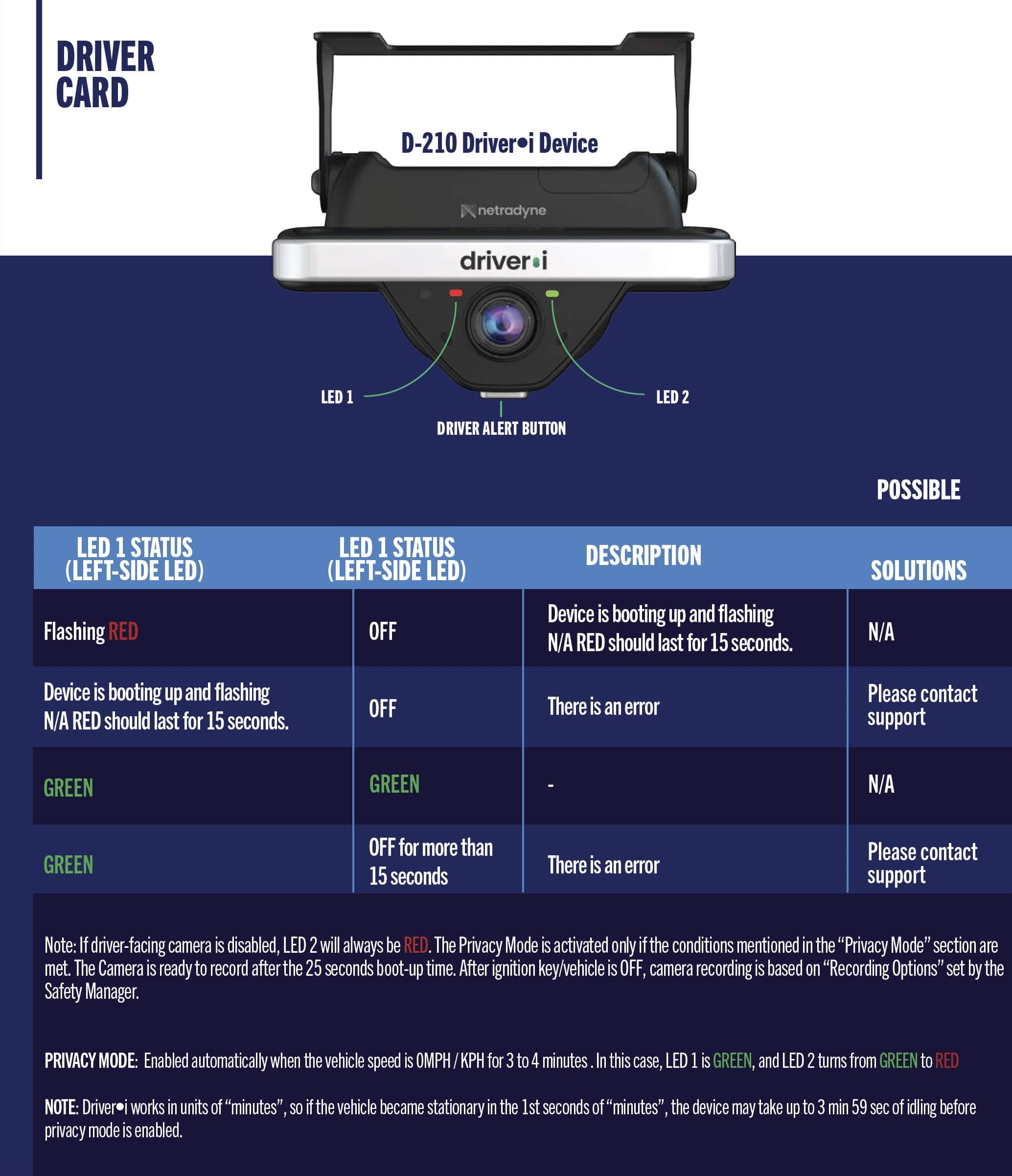
On the bottom of the device there are two buttons. If you want to immediately “TAG” a video, press either button. Upon pressing either button, a 1-minute video alert will be “TAGGED” to be preserved. After two minutes, a notification will be automatically populated on the Driver•i dashboard. The video will also appear in your profile on the Driver•i dashboard.
What is the purpose of this program?
The purpose of the Driver•i program is to prevent collisions by identifying and correcting unsafe behaviors before they lead to a collision. The program gives you a holistic view of your driving experience to identifying and correct any bad habits, while also focusing on the amount of time you are driving safely.
Since outside video is always being captured, this allows you to request video that may be helpful to identify some of the following:
- You showed up at a site and could not gain access
- Provide feedback about routes or timing of deliveries
- Road-rage by another driver
- Exonerate you if there is a false claim that you had done something wrong or reverse an inaccurate tra c violation
- Capturing low-force collisions, such as mirrors being clipped by passing motorists
Who can view the video?
Only authorized personnel at your company have access to the secure Driver•i portal.



Monitor for High Value Loads
Security Standards
- Drivers are required to travel a minimum of 200 miles after they pick uk before they can stop.
- Drivers must notify dispatch any time they stop. They are required to provide dispatch with a location and the reason for the stop.
- TSP must have a process in place that ensures that unauthorized parties are not in the tractor, as they are not allowed.
- All drivers must arrive at the pick up location fully fueled, fed, and rested with enough driving hours to travel for (6) hours.
- Drivers need to utilize TSP recommended secure locations for stops.
- All loaded trailers are prohibited from being dropped anywhere other than secure yards.
- Drivers are prohibited from taking any shipment near or to their residence.
- Drivers must have at least three (3) months minimum experience with current employer (TSP).
- A fuel cap lock must be installed to prevent submission of substances that will cause stops/delays.
- If load is transferred to another driver, procedures must be clearly documented to prevent deception when freight changes custody between drivers. These procedures will apply at delivery also.
- Routes/stop locations should be reviewed and assessed for risk and changed if necessary.
- During stops, truck must always be parked in view of the driver, locked, and alarm(s) activated.
- Procedures must address the authenticity of law enforcement personnel and process for reporting and responding to police controls.
- Tamper evident seals are required for all loads.
- Seals must be controlled to prevent unauthorized use.
- Seals must be checked at every stop, each transfer point, upon arrival or departure, or when the container/trailer have been left unattended.
- Seal numbers must be recorded on bill(s) of lading.
Drivers Running for customers with SenSitech in the loads must follow a different procedure.
Violation Types for Drivers Running for customers:
If Shipment is being monitored the below will be applicable:
- Drivers cannot stop within the Red zone stop: stopping within 200 miles of origin for any reason. This includes bathroom breaks, medical breaks, mechanical failures, fuel stops, D.O.T. rest, and driver relays.
- ShapeStop/start notification- Drivers must call the phone number on the BOL when stopping: Failure to notify SenSitech of stopping or starting in-transit.
- Geo-route deviation: deviating from pre-established route without notifying SenSitech.
- Maintaining contact may cause a violation: failure to maintain contact with SenSitech or respond to SenSitech requests while in transit.
- Drivers must report the Arrival: Failure to notify SenSitech of arrival at consignee (must be at seal break if live unload).
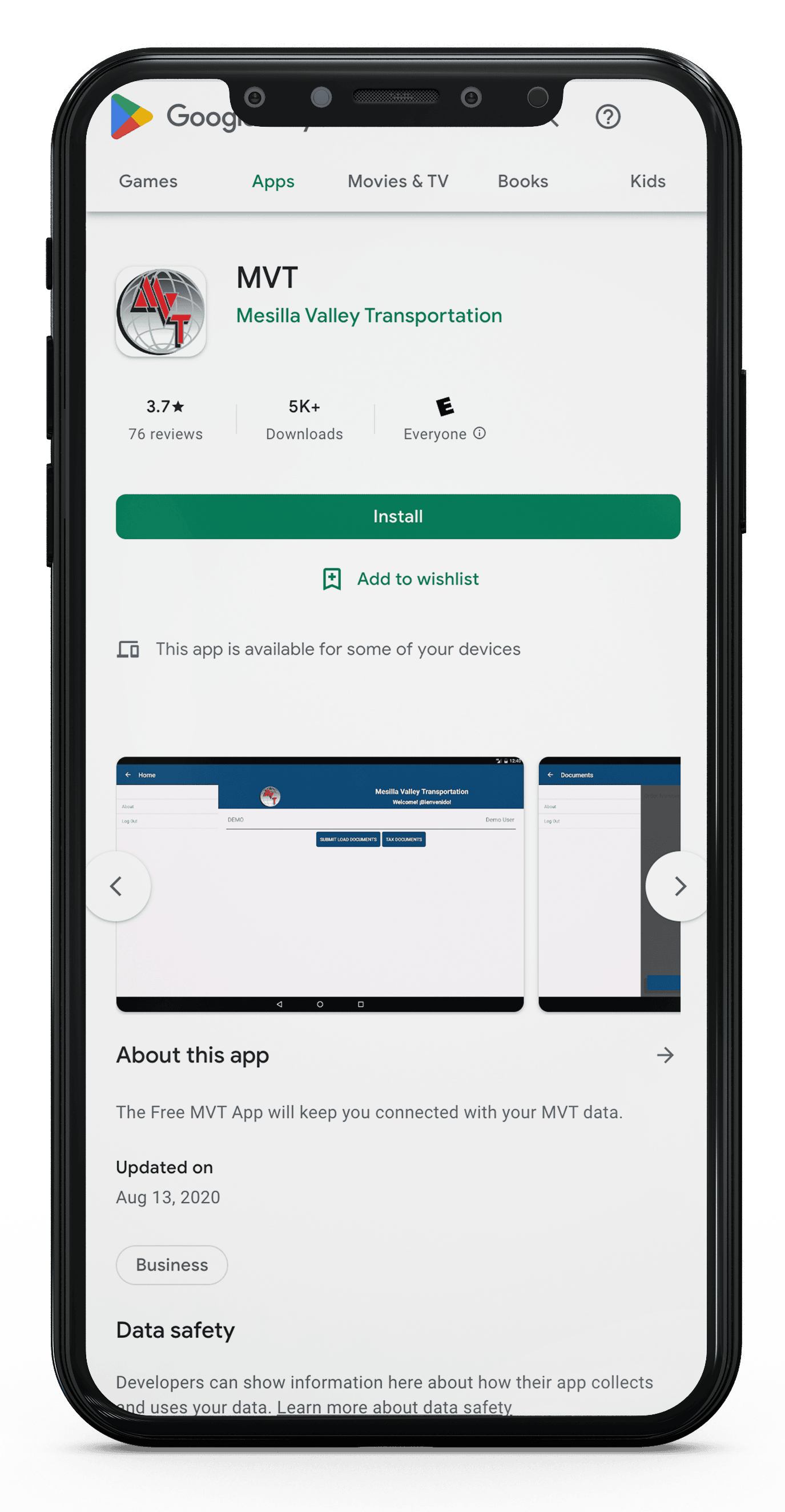
MVT Mobile App: Access PaperSmart
The MVT Mobile App is available on Android and Apple Smart Phones.
For Android and Apple
- Search for MVT on the App Store/Play Store
- Download the App and open it
- Start uploading your documents under the dispatch tab
For support Call or Email Us:
Images of documents can be named and sent directly to Payroll. For Papersmart Support contact 575-541-7990 or email helpdesk@m-v-t.com.
APP FEATURES:
- Document capture
- Name documents
- Upload, edit, and dispatch documents
- View previous dispatches from the last 30 days
MVT Mobile Application.
Send paperwork.
On your tablet:
- Locate and touch the MVT App icon on the application’s ribbon.
- Touch [DISPATCHES] and select the dispatch that you want to submit.
- Touch [SUBMIT PAPER WORK]; this will display the order number at the top of the page.
- Touch [ADD DOCUMENT]. This will activate the camera on your tablet.
- Line up the green line with the document. The tablet will automatically snap a photo of it. You may see 4 blue dots, You will need to adjust your phone dots before taking the picture.
*Note: Make sure the image is clear. Please take the picture on a flat surface, do not stack pages on top of each other. Take one picture at a time. We require a full copy of the bill of lading with no surrounding distractions in the picture (this includes: black edges, fingers, no background images that are not part of the billing lading.
- Touch [tap to pick type] to label the photo. Documents should always be labeled in the same order:
- Trip sheet for every load your move. Note: Always add the trip sheet first.
- All the pages of the bills of lading
- Reimbursable receipts (if any).
- Paper logs (if any).
- Scroll down to find the document type that you are submitting and touch [ok].
- Once you are done with all documents select [UPLOAD]. To attach more documents touch [ADD DOCUMENT].
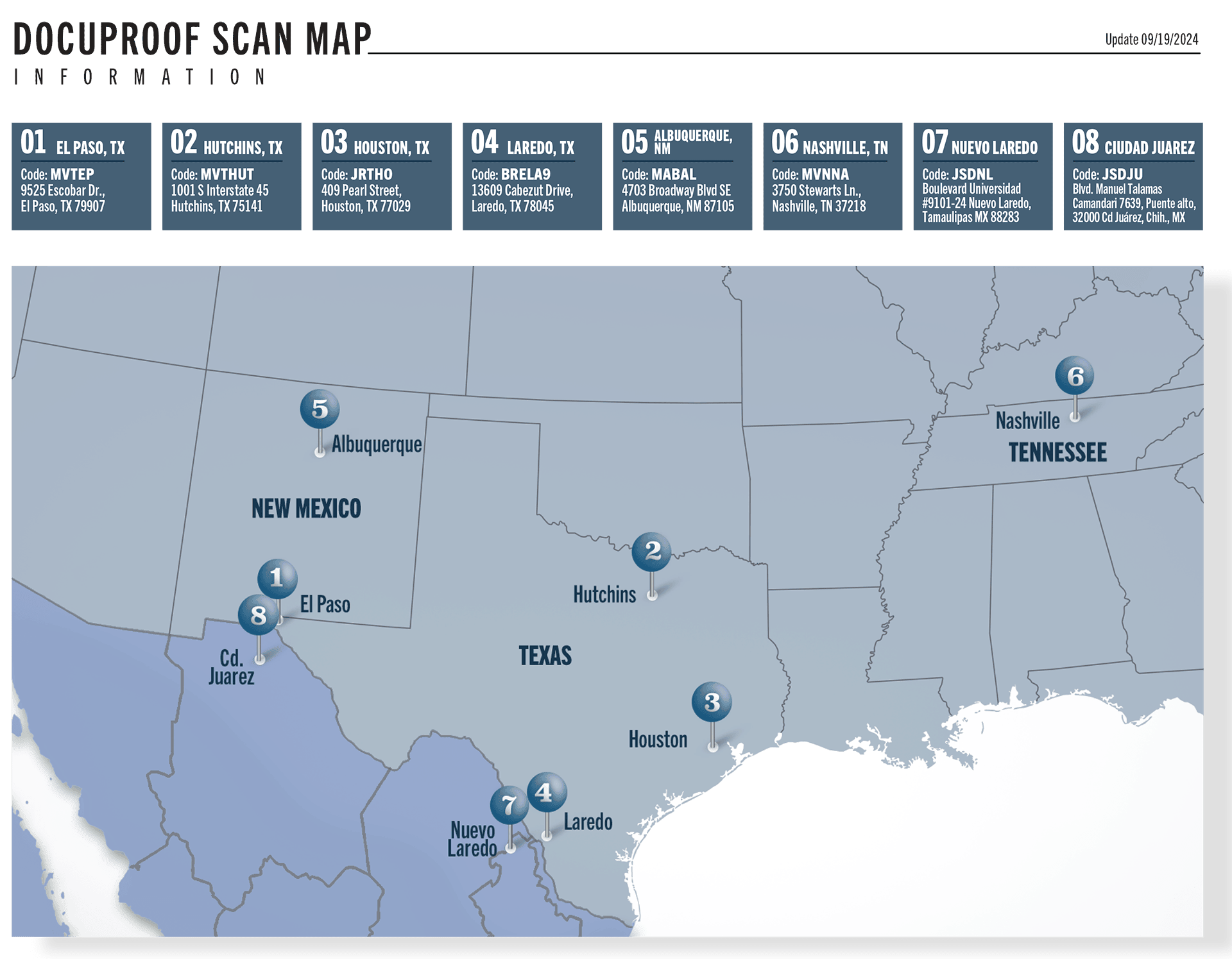
As a backup, drivers can use the Docuproof Station if there is no cell service.